
App preview
See Amerivio in Action
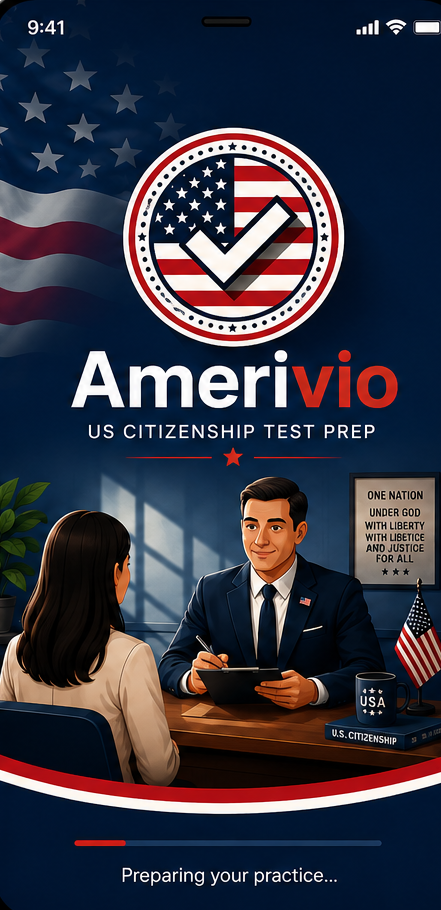
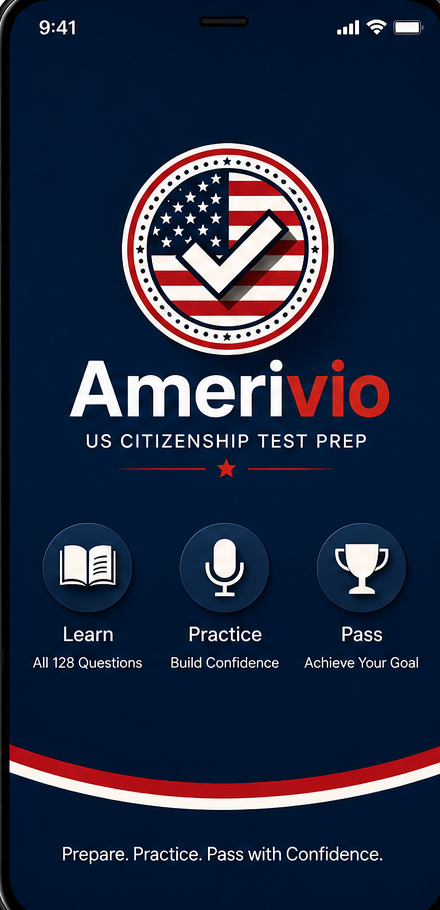
Upload Screenshot Here
Profile Selection
/screenshots/profile-selection.pngUpload Screenshot Here
Home / Readiness Dashboard
/screenshots/home-dashboard.pngUpload Screenshot Here
Learn Mode
/screenshots/learn.pngUpload Screenshot Here
Easy Practice
/screenshots/practice-easy.pngUpload Screenshot Here
Medium Practice
/screenshots/practice-medium.pngUpload Screenshot Here
Hard / Interview Microphone
/screenshots/interview-hard.pngUpload Screenshot Here
Mock Test
/screenshots/mock-test.pngUpload Screenshot Here
Known Questions
/screenshots/known-questions.pngUpload Screenshot Here
Progress / Readiness
/screenshots/progress.pngUpload Screenshot Here
Settings / Reminders
/screenshots/settings.pngUpload Screenshot Here
Language Selection
/screenshots/language-selection.pngSwipe to see more screens
Upload Screenshot Here
Profile Selection
/screenshots/profile-selection.pngUpload Screenshot Here
Home / Readiness Dashboard
/screenshots/home-dashboard.pngUpload Screenshot Here
Learn Mode
/screenshots/learn.pngUpload Screenshot Here
Easy Practice
/screenshots/practice-easy.pngUpload Screenshot Here
Medium Practice
/screenshots/practice-medium.pngUpload Screenshot Here
Hard / Interview Microphone
/screenshots/interview-hard.pngUpload Screenshot Here
Mock Test
/screenshots/mock-test.pngUpload Screenshot Here
Known Questions
/screenshots/known-questions.pngUpload Screenshot Here
Progress / Readiness
/screenshots/progress.pngUpload Screenshot Here
Settings / Reminders
/screenshots/settings.pngUpload Screenshot Here
Language Selection
/screenshots/language-selection.png